13 common problems
Find the features and steps for your problem.
Project Hub
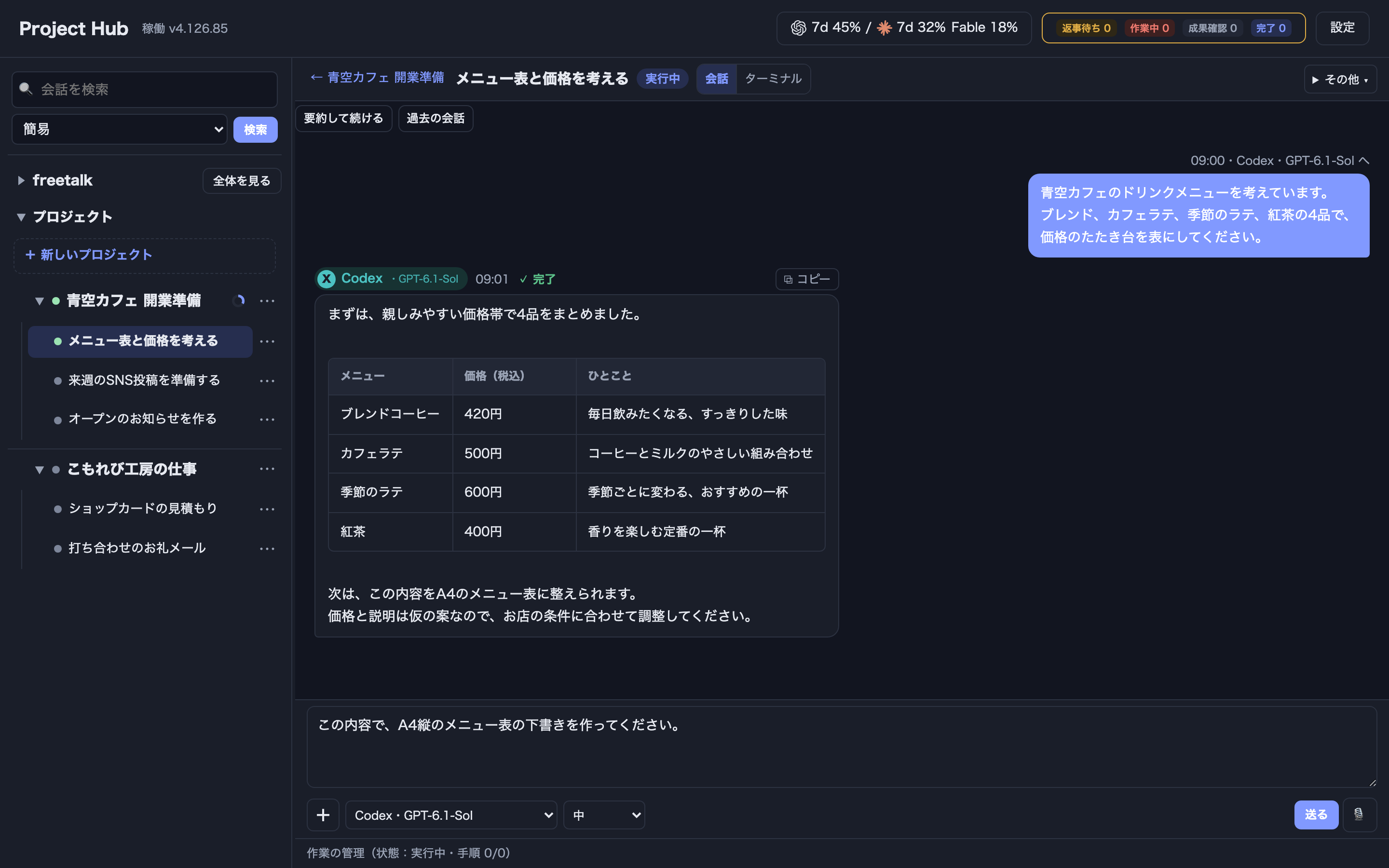
Project Hub is a Mac and Windows app that lets you switch between AI tools such as Claude Code, Codex, and Gemini in one window, and keeps each project's tasks, conversations, steps, and results together. You hand work to the AI, and you decide what gets merged or published.
No email sign-up needed
Latest version 4.126.98 (released November 15, 2026) · Mac (Apple Silicon) / Windows 11 x64
13 common problems
Find the features and steps for your problem.
All features in 10 groups
See each feature’s purpose, how to use it, and conditions.
Project Hub is a management app for using AI command-line tools (Claude Code, Codex, Gemini's Agy CLI, and others) together in one window on your own computer. It lists your projects and tasks, and records the AI conversation, steps, results, and remaining work for each task. The AI works in a separate working copy for each task, and a person reviews and decides what is merged into the main folder. It is provided by KALEIDOSCOPE KNOWLEDGE Inc. The main source code is published under the MIT License (the paid feature components are not included in the public source).
| Supported OS | macOS 13 or later (Apple Silicon), Windows 11 x64 |
|---|---|
| AI you can use | Claude Code, Codex, Gemini (Agy CLI), Grok Build, ChatGPT (through separately installed external software; off by default) |
| Where data is stored | A folder you choose on your computer |
| Price | All features free for 30 days. One-time purchase of ¥4,900 (tax included); ¥1,100 (tax included) when bought in the app during the trial |
| AI fees | Not included. You need separate contracts with each AI provider |
| Latest version | 4.126.98 (November 15, 2026) |
For each common problem, here are the features to use, the steps to follow, and what they can and cannot solve.
Features marked "Trial and paid" require a purchase after the 30-day trial. Everything else can be used without buying.
The features of the latest version 4.126.98, explained in 10 groups by purpose. Features marked "Trial and paid" require a purchase after the 30-day trial. Everything else can be used without buying.
| Feature | Purpose | How to use | Conditions and limits |
|---|---|---|---|
| New project | Create a ledger, AI instructions, and work folder for each goal | Enter a name, description, and phases with [+ New project] at the bottom of the left list | Main folder, parent, and related projects are set under "Details" (くわしく) |
| Quick start | Create a task from a request and send it to the AI | Write what you want to do on the project screen and press [Start] | The first assignee is Claude Code; after that, each project remembers the last assignee |
| Left tree | See how projects and tasks relate at a glance | Tasks hang under projects; branched tasks appear one level down with "↳" | "⑂2" shows the number of branches |
| Overview screen | See a project's description, tasks, phases, issues, and related projects | Press the project name | [View files] opens where the contents are |
| Phases | Manage a project's path in stages | When all tasks in the current phase are done, a button to go to the next phase (次のフェーズへ進む) appears | The task list shows only the current phase |
| Progress and status | Show task progress and status with colors and a bar | Shown automatically from the number of "Steps" in the task file | If the screen stays still for 20 seconds, "Waiting for input" appears |
| Notifications and [Your turn] | Don't miss tasks that need a reply or a decision | "Unread", "Waiting for reply", and "Completion review" in the list, and counts at the top | For completion, a person chooses [Mark as done] or [Keep going] |
| AI questions | Answer the AI's questions with choice buttons | Press the buttons shown in the conversation screen | The task becomes "Waiting for reply" (yellow) |
| Child projects | Split work and run the parts at the same time | [Split into child projects] | Running AIs at the same time is Trial and paid |
| Integration and partial results | Receive child results in the parent | The parent's [Integrate…], the child's [Hand Off Results (Partial)] | Cleanup happens only at the final integration of a finished child |
| Delete and restore | Delete while protecting shared material, and restore from records | Right-click [Delete…], [Organize and review] | Cannot be moved while an AI, queue, child, or working copy exists |
| Feature | Purpose | How to use | Conditions and limits |
|---|---|---|---|
| Conversation screen | Choose the AI, model, and thinking level each time you send, in one conversation | Open a task, choose in the AI selector, and send | When you change AI, the conversation it hasn't seen yet (text only) is handed over |
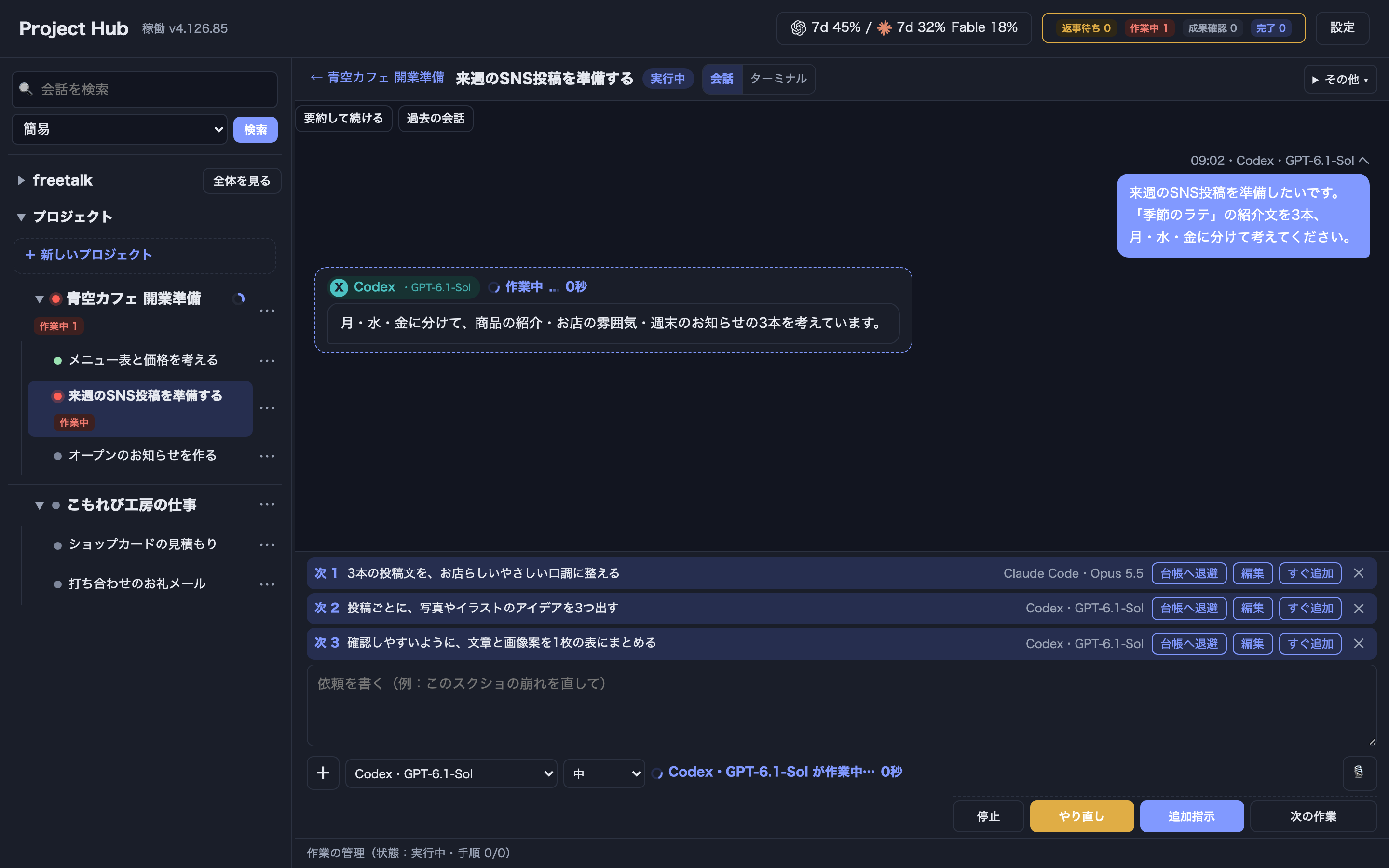
| Instructions during work | Add to, redo, or postpone instructions while the AI works | [Cancel and redo] (取り消してやり直す), [Additional explanation (do together)] (追加説明(一緒にやる)), [Next when done] (終わったら次に) | Queued instructions starting automatically in order is Trial and paid |
| Discussion (話し合い) | 2 to 4 AI pairs give independent opinions, then summarize | Choose participants, rounds, and summarizer in Discussion | Trial and paid. In the first version, Claude Code and Codex take part |
| Free talk (フリートーク) | Free conversation not tied to a project | Free talk at the top of the list, [New topic] | Conversations are saved separately per topic |
| Tables and copy | Show AI tables clearly and copy text to pass to another AI | [⧉ Copy] on code blocks | — |
| ChatGPT (Chat / Pro) | Send to ChatGPT and keep the reply in the same conversation | Set the external software in settings, check login, and select it | Trial and paid. Off by default. Requires installing external software. Does not change files or run commands |
| Feature | Purpose | How to use | Conditions and limits |
|---|---|---|---|
| AI terminal in the app | Use the AI's command screen inside the app | [Start with] Claude Code / Codex (Claude Code で始める/Codex で始める) | The AI keeps running in the background after you close the window |
| Two AIs side by side | Work with two AIs side by side at the same time | [+ side by side] (+ 並べる) | — |
| Switching model and thinking | Change the running AI's model or thinking level | Choose in the header field | Sends /model or /effort to the AI |
| Switching AI | Hand over to another AI at a limit or when changing models | [Switch over to ○○ →] | Declined if the other AI is working |
| Passing files and screenshots | Pass files into the AI's input box | Drag onto the terminal, or paste | Saved to the Inbox folder and also recorded in the task file |
| Feature | Purpose | How to use | Conditions and limits |
|---|---|---|---|
| [Role assignments] | Set the AI, model, and thinking level for each role | The role assignments table in settings | Only logged-in AIs can be chosen |
| Assignees by difficulty | Use different assignees depending on how hard the work is | Turn on in settings | Off by default |
| Role review | Ask another AI about your role assignments | [Manual review] (見直し) in the table | Trial and paid |
| Delegation from AI to AI | Pass work to the assigned AI within the same conversation | The AI makes the request through Hub's fixed channel | Trial and paid. No child tasks are added |
| Automatic switching at usage limits | Switch to the assignee you set when a limit is reached | main / backup in settings | Trial and paid. Kept until it expires or is released manually |
| [Special mode] | Focus work on one AI | Turn on in [Settings] → AI | At a limit it does not switch and waits until released |
| Running at the same time | Run an AI in another task while a different AI is running | Start AIs in several tasks | Trial and paid |
| Feature | Purpose | How to use | Conditions and limits |
|---|---|---|---|
| Multiple accounts | Use separate accounts for Claude Code, Codex, and Grok | [Add] in "AI accounts" in settings, then log in yourself | You never enter passwords or tokens into Hub. Gemini supports the default account only |
| Usage display | See the share of your Codex and Claude plan usage | Shown in settings and on screen; [Check current status] | May become unavailable if the CLI changes |
| Token totals and monitoring | See token usage, breakdown, and consumption on this computer | The Token section in settings | Reads numbers only. No automatic stop or outside notification |
| Automatic model list check | Show only models that can be used as choices | Checked automatically every day; manually with [Update All] | Assignees are not changed automatically when new models appear |
| Feature | Purpose | How to use | Conditions and limits |
|---|---|---|---|
| Conversation search | Find messages across all projects and free talk | The search box on the left; [Quick search (current only)] (簡易検索(現在のみ)), [Detailed search (including past)] (詳細検索(過去も含む)) | Partial match. 50 results at a time, up to 1,000. Searches only on your computer |
| Summarize and continue | Summarize a long conversation and switch to a new one | Press [Summarize and continue] once | The original can be read in [Past conversations] |
| Task file | Keep steps, what was done, next steps, and results | The AI and you update it at each milestone | — |
| Action log | Keep records of starting, stopping, handing off, and merging | "Recent actions (log)" in settings | — |
| [Idea ledger] | Keep text and images separated into records and "plan to build" | [Save] in the [Idea ledger], [Save to ledger] in a conversation | Images: PNG, JPEG, GIF, WebP, up to 20 MB each and 10 images. Automatic progress is Trial and paid and off by default |
| Feature | Purpose | How to use | Conditions and limits |
|---|---|---|---|
| [Working copy] | Keep changes separate for each task | Created automatically with [Start] | Projects with Git only |
| Preview before merging | See the amount of change and whether it may conflict | Shown next to [Merge into main] | The button is hidden when there are 0 changes |
| [Merge into main] | Bring the working copy into the main folder | [Merge into main] | If there is a conflict, it does not merge and tells you |
| Excluding from merge | Hide the button for tasks you won't merge | [Exclude from merge] / [Include in merge again] | The copy is kept |
| Connecting to GitHub | Register a private repository as a destination | [Connect existing GitHub] | Registration and display only. Contents are not synced |
| Feature | Purpose | How to use | Conditions and limits |
|---|---|---|---|
| Image attachments | Send images with your request | Drag or paste into the conversation box | Up to 10. Kept even if sending fails |
| Video attachments | Pass videos as images split by scene | Add from [+] | Up to 50 MB and 10 minutes each. Requires ffmpeg. Transcription requires an optional environment |
| Viewer | View images, PDFs, text, and Word files above the conversation | Press a location in the conversation | — |
| Opening locations and URLs | Open folders, files, and URLs in a conversation | Press a location marked 📁 or a URL | — |
| Voice input (音声入力) | Enter Japanese by voice | Voice input in the input box | May not work depending on browser or OS. Sending is done by a person |
| Feature | Purpose | How to use | Conditions and limits |
|---|---|---|---|
| [Data location] | Choose the folder for conversations and materials | [Settings] → [Management] → [Data location] | Don't run two copies at once on the same location |
| App updates | Check for and install new versions | [Settings] → [Management] → [Project Hub auto update] | Only new versions whose signature can be verified are installed |
| AI CLI updates | Update the AI CLIs you use | [Update All] in settings | Updates only when pressed |
| Display language | Show the app in English or Traditional Chinese | Add a language pack with [Add language pack…] | Some screens stay in Japanese |
| [Remote access] (iPhone) | Use your Mac's Hub while away | Turn on in settings and set a passphrase | Tailscale is required separately |
| MetaMuse integration | Send questions and materials to the outside advisor Muse | Choose Muse as the conversation's destination | Mac only. Requires a Muse account and the installed tool |
| Agy CLI and Grok Build | Use Gemini and Grok | Install and log in to the CLI yourself | Hub only shows the install command |
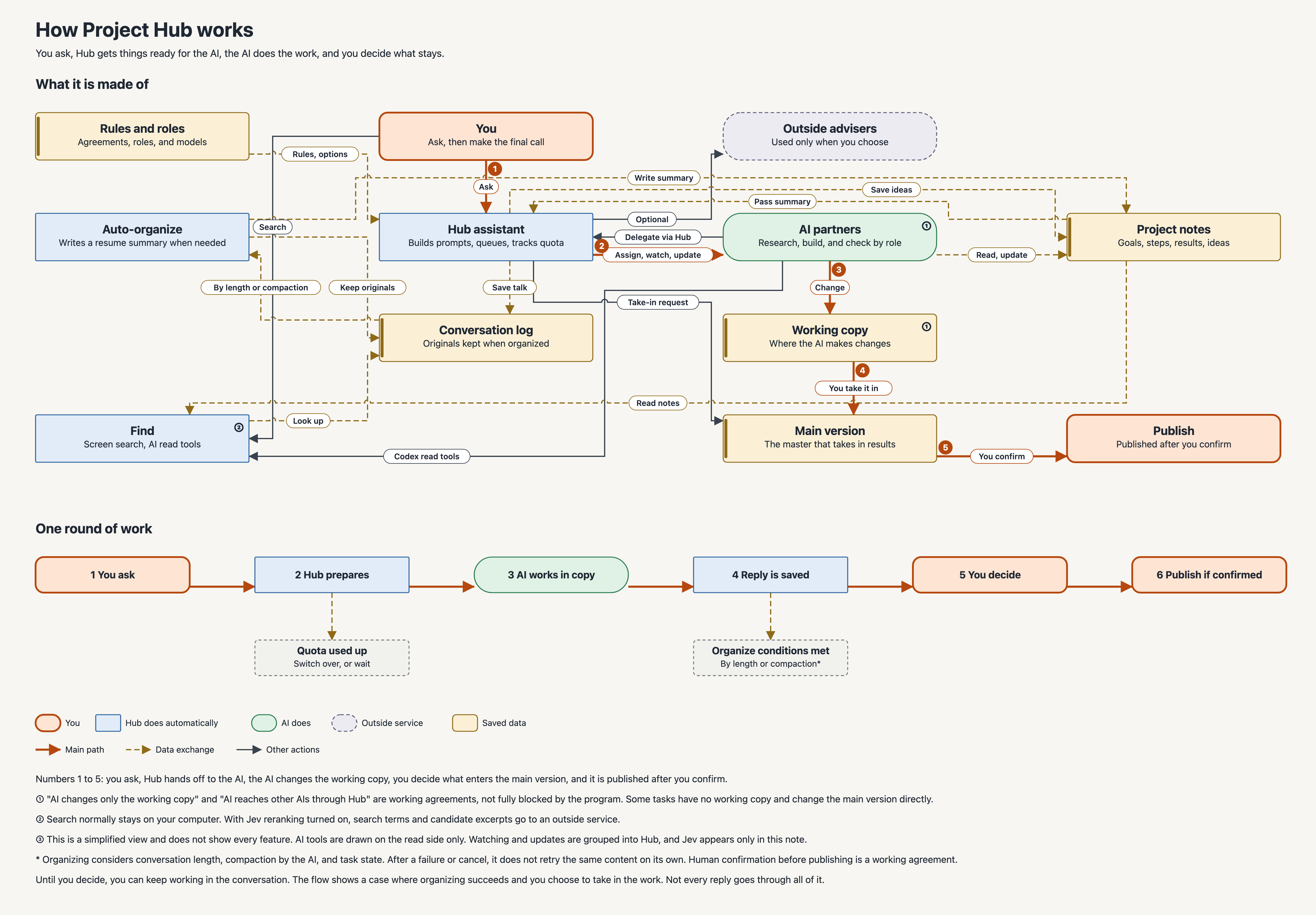
To show the app in English, add the English language pack (the file ending in "Language-Pack-en.zip" on the release page) with [Add language pack…]. Without it, the app is shown in Japanese.
Install, update, and after-purchase instructions (Japanese) →
Features available during the trial and after purchase (purchase required after the trial): delegation from AI to AI, automatic queue progress, automatic switching at usage limits, running at the same time, discussion, role review, ChatGPT integration, and automatic idea progress.
Buy for ¥4,900 (tax included)A Mac and Windows app that lets you switch between AI tools such as Claude Code, Codex, and Gemini in one window and keeps each project's tasks, conversations, steps, and results together.
No. You need separate contracts and fees with each provider.
Claude Code, Codex, Gemini (Agy CLI), and Grok Build, once you install their CLIs and log in. ChatGPT can be used through separately installed external software (off by default).
In a folder you choose on your computer. If you choose your previous AI-Workspace, there is no need to copy anything back. What you send to an AI goes to the service you have a contract with.
In projects with Git, the AI works in a separate working copy for each task, and a person decides whether to merge into the main folder with [Merge into main]. However, by default the AI starts with permission prompts skipped, so it can change files and run commands with your permissions.
The official version for Windows 11 x64 is available. Some features, such as isolated execution that works only on Mac, are not available on Windows.
You can still use basic conversations and materials. Features such as delegation to AI and automatic progress are available after purchase.
Yes. Full refund within 14 days of purchase, for any reason.
As of November 15, 2026, the latest version is 4.126.98. You can check it on the GitHub release page.
Sources: GitHub release 4.126.98, README, hub/README (how to use), CHANGELOG, LICENSE (all in Japanese).